As Microsoft MVPs, we can append our contributor ID (?WT.mc_id=…) to Microsoft Learn links.
But instead of doing it by hand, here’s a dead-simple browser bookmark trick that lets you generate the tagged link in a single click.
The Solution
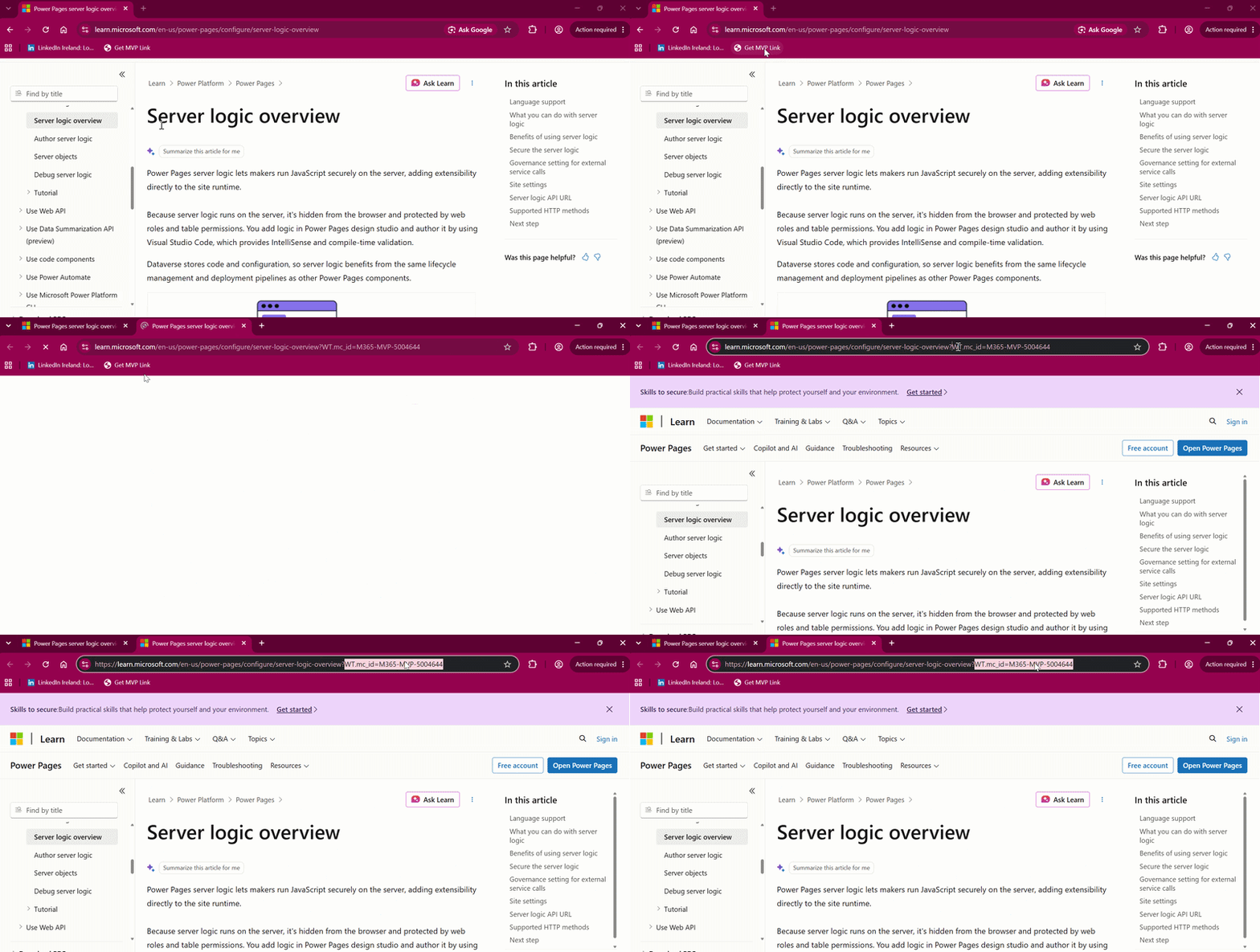
Instead of pointing to a website, you can create a bookmark that runs a tiny piece of JavaScript. When you are reading a post on Microsoft Learn, you just click the bookmark. It automatically grabs the current page URL, attaches your MVP ID to the end of it, and opens the ready-to-share link in a new tab.
Here is the code I use:
javascript:((function() {
    var u = new URL(window.location.href);
    u.searchParams.set('WT.mc_id', 'M365-MVP-5004644');
    window.open(u.toString(), '_blank');
})())
How to set it up
You can add this to Edge, Chrome, or any standard browser in just a few steps:
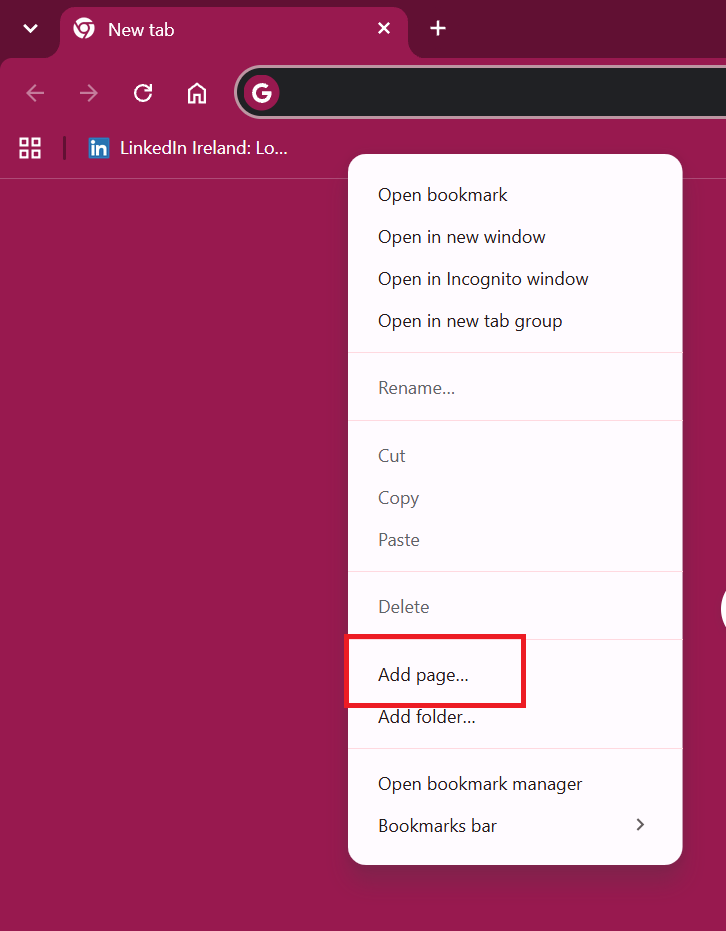
Right-click on your browser’s bookmarks bar and choose Add page:
Give it a name that makes sense to you, like “Get MVP Link”.
In the URL or Web Address field, paste the JavaScript code provided above. Find my ID (M365-MVP-5004644) in the code and replace it with your own MVP ID.
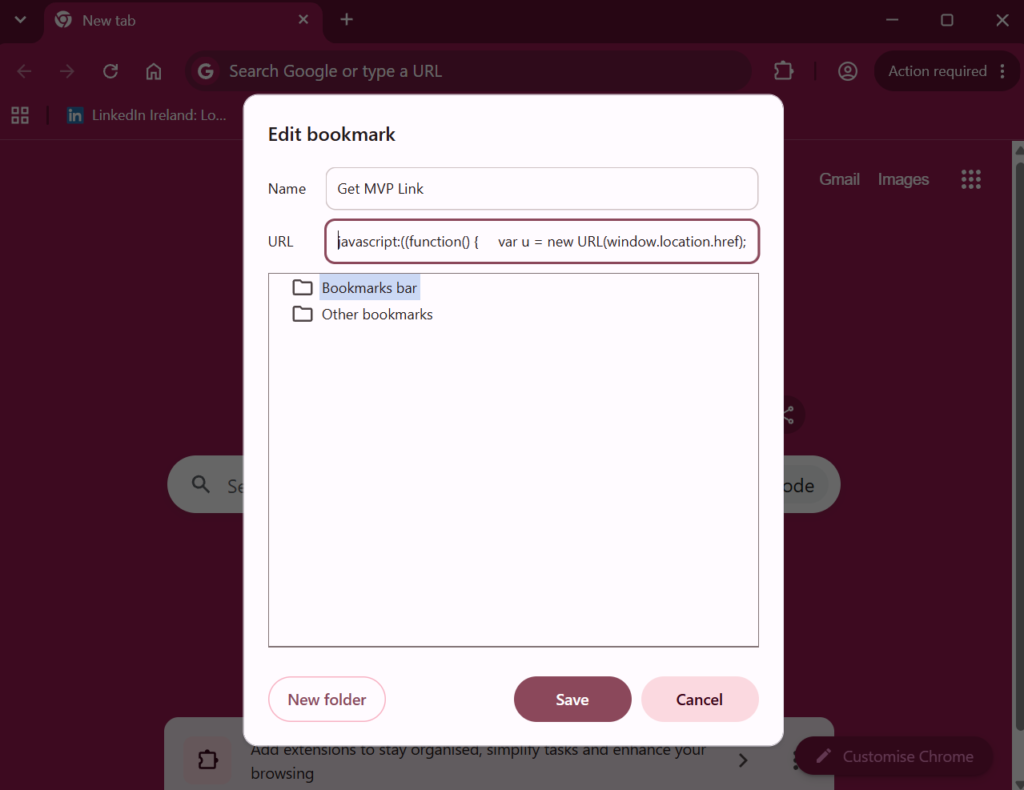
Save the bookmark.
How to use it
The next time you find a great Microsoft Learn article that you want to share on LinkedIn, Bluesky, or X:
- Open the article you want to share
- Click your new bookmark in the bookmarks bar.
- A new tab will open with the exact same article, but your MVP ID will now be attached in the address bar.
- Copy the URL from that new tab and paste it directly into your post.
It is a very simple workaround, but it removes friction and saves time when you are working in an environment where browser extensions are blocked.