Some time ago, I ran into an issue trying to deploy the new Server Logic feature in Power Pages. A
Classic Release Pipeline was already set up for a site that uses the Standard Data Model, and running smoothly.
The problem is that the “Power Platform Tool Installer” task in Azure DevOps pulls an older version of the Power Platform CLI. This version at that time did not recognize the new Server Logic component types, so the backend code simply doesn’t get uploaded.
Normally, Microsoft recommends using Dataverse Solutions to deploy these newer features. But since the site is on the standard data model, solutions won’t package the site components correctly. I didn’t want to migrate to the Enhanced Data Model just yet, and I needed a quick fix to keep my existing pipeline working.
Note: I had one build pipeline that extracts the code that is committed into a repository branch into DevOps artifacts, so we make sure to deploy only the committed code.
The Workaround: Use PowerShell to get the latest PAC CLI
Instead of using the native installer task, I used an inline PowerShell script to download the latest CLI directly from NuGet. This got the updated pac commands that supported server logic tables.
Step 1: Set up pipeline variables
First, we need to pass the authentication details securely.
Go to your Classic Release Pipeline and open the Variables tab.
Add the following variables:
- ClientId: Your Application ID.
- ClientSecret: Your client secret (click the padlock icon to hide it).
- TenantId: Your Entra ID Tenant ID.
Make sure the Application is added to the Dataverse environment with the correct permissions to upload a Power Pages site.
Step 2: Add the PowerShell script
I removed the standard Power Platform Upload task from the release pipeline. Then, added a standard PowerShell task to the agent job, set it to Inline, and used this script:
# Install the latest PAC CLI globally on the agent
Write-Host "Installing the latest Power Platform CLI..."
dotnet tool install --global Microsoft.PowerApps.CLI.Tool

# Update the session PATH so it finds the 'pac' command
$env:PATH = "$env:USERPROFILE\.dotnet\tools;$env:PATH"

# Authenticate using the pipeline variables
Write-Host "Authenticating..."
pac auth create --url "https://your-target-env.crm.dynamics.com" `
                --applicationId "$(ClientId)" `
                --clientSecret "$(ClientSecret)" `
                --tenant "$(TenantId)"

# Upload the site
Write-Host "Uploading Power Pages site..."
pac pages upload --path "$(System.DefaultWorkingDirectory)/_Your-Artifact-Alias/drop/your-site-folder"
Run the build + Release
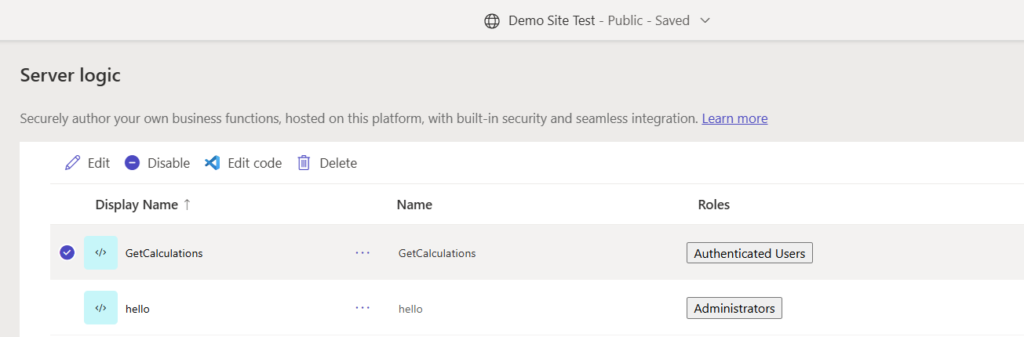
After the release runs successfully, Server Logic was correctly deployed into the target environment:
Conclusion
By using PowerShell, we are able to easily overcome the limitations on the standard Power Platform actions.
References
Power Pages Server Logic Overview – Microsoft Learn
Installing the Power Platform CLI (PAC CLI) – Microsoft Learn
PAC Pages CLI Reference – Microsoft Learn
Power Platform CLI with Power Pages Tutorial – Microsoft Learn